 CaptureXRecCaptureXRec
Steps that stay in order
Add a step in position three and every step after it renumbers on its own. You never change the numbers by hand.
A page too long for one screen becomes a single image, so you do not have to paste several screenshots that do not line up.
Turn on the microphone to explain what is happening, and add the camera if you want your face in the video. Pause between steps without ending the recording, then resume. Everything stays in one file.
Find an old recording by searching the words that were on screen when you made it, instead of watching many similar clips.
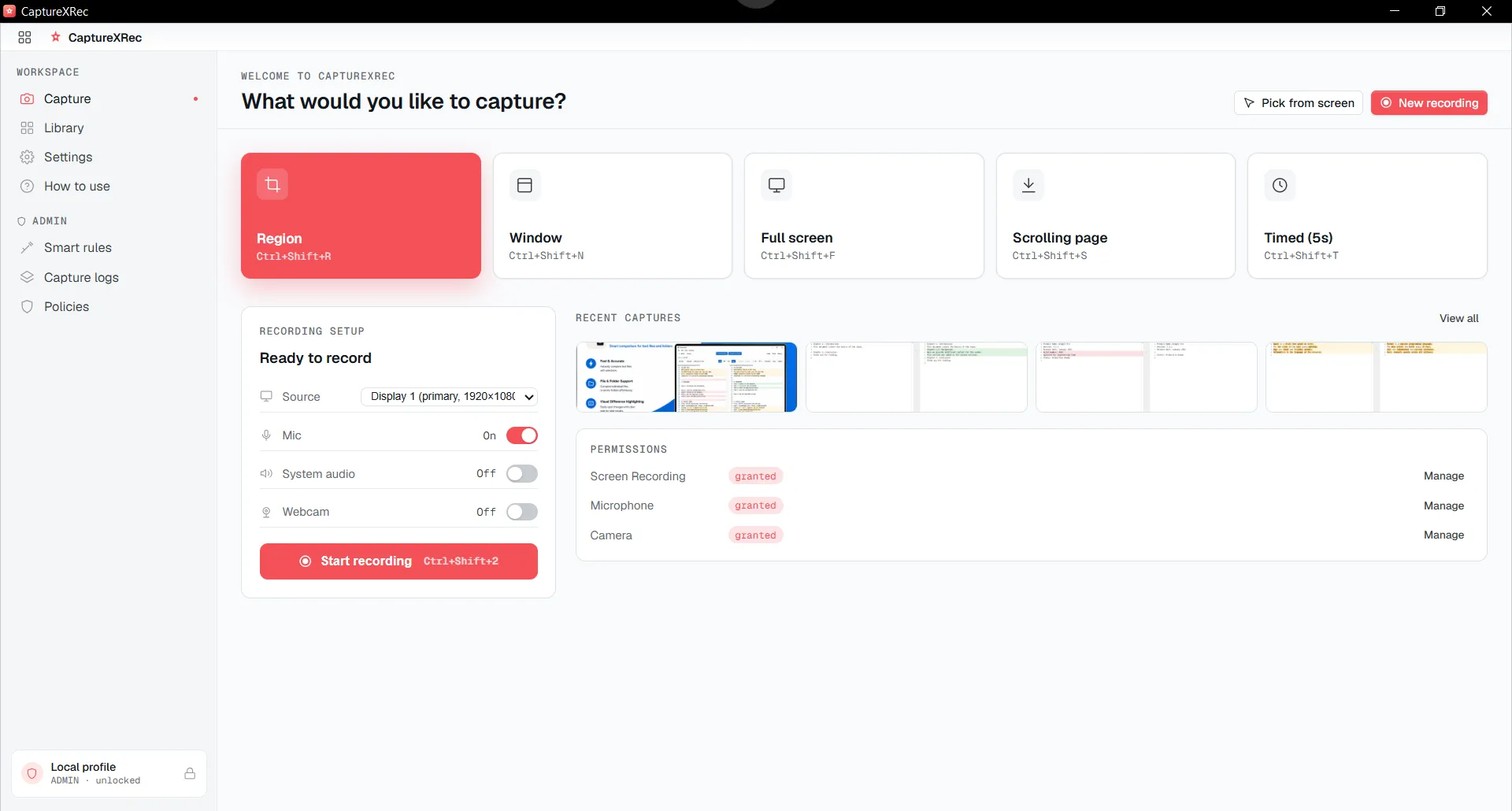
Capture each step as it happens, including a long page as a single image instead of several that do not line up.
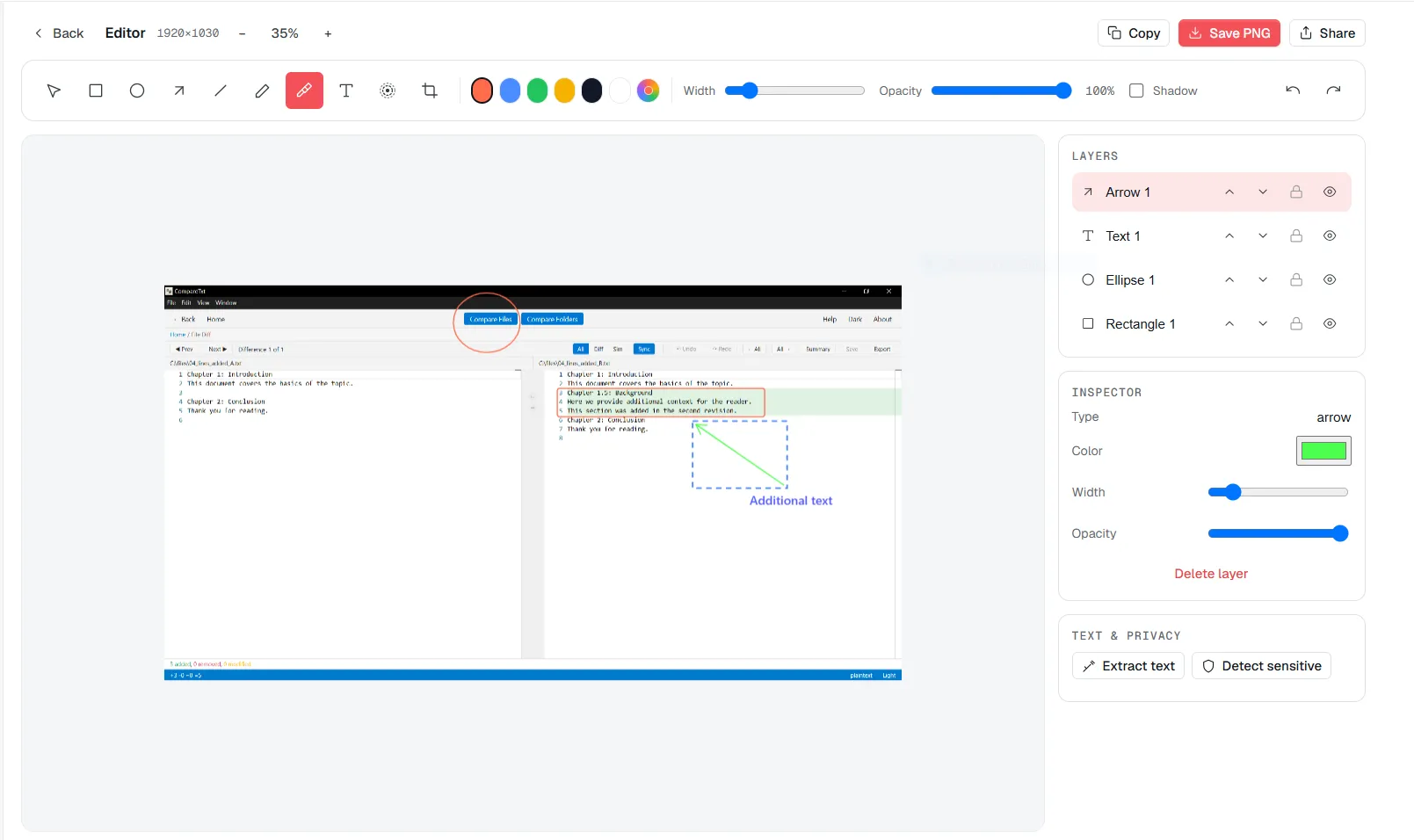
Mark up what the reader should do next with callouts that keep their own order when the walkthrough changes.
Take a screenshot for a quick step, or a scrolling capture when the reference is a whole page rather than a single screen.
Drop numbered callouts on the parts that matter — insert or reorder one and the rest renumber automatically.
Press record and explain as you go. If you need a break between steps, pause and resume. The cursor stays highlighted so viewers can follow where you click.
Search the library later using the exact text that was on screen during the take, not just a filename or a date.
Supported on
Windows 10 (1809+) · Windows 11 · x64 · ARM64
No — auto-arranged numbered callouts renumber themselves when one is inserted or reordered.
Yes — scrolling capture takes a long page as a single continuous image rather than several screens to stitch together.
Yes — the microphone and webcam are independent switches, and you can pause between steps and resume the same take rather than stopping and starting a new recording.
Search the library by the exact text that was on screen during the take — on-device OCR is what makes that text searchable.
$12.49, once.
Buy on Microsoft Store — $12.49