 CaptureXRecCaptureXRec
Two switches, one file
The microphone and your computer's sound are separate switches. Turn either one on by itself without changing the other.
Turn on system audio alone to record exactly what your computer is playing, such as a call, a match or a song, without any noise from your room.
Keep system audio off and speak into the microphone to explain what is on screen, with no other sound from the computer.
Whatever sound you chose is saved inside the same MP4 as the video. There is no separate audio file to match up later.
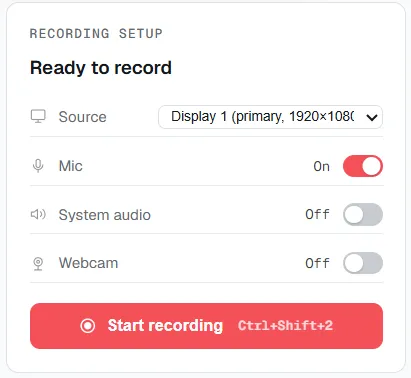
Microphone and system audio are two separate switches — set them independently before you start recording.
Open the recording setup panel before you start. It is one click away.
Choose what to record: a window, part of the screen, or the whole display.
Choose the sound you need: your voice only, computer sound only, both, or neither.
Press record. The sound you chose is saved with the video automatically.
Supported on
Windows 10 (1809+) · Windows 11 · x64 · ARM64
Yes. The microphone and system audio are two separate switches, so you can turn on both, one, or neither.
Yes. Switch on system audio and leave the microphone off, and only what the computer is playing is recorded.
One file. The audio is saved in the same MP4 as the screen video, so there is nothing to merge later.
AAC audio inside the same MP4 file as the H.264 video. It is a standard combination that plays in any common player.
$12.49, once.
Buy on Microsoft Store — $12.49