 CaptureXRecCaptureXRec
For any Windows PC
One install works on Windows 10 (version 1809 or newer) and Windows 11, on both standard x64 and ARM64 PCs. There is no separate version to look for.
Capture an area, a window, the full screen, a long scrolling page, or take a timed shot. All five are in the same small widget that stays on top of other windows, one click away.
Switch the same widget to recording mode and it saves a standard MP4 video file (H.264 video, AAC audio) that plays in any common player.
The floating widget leaves itself out of every screenshot and recording, so your file shows only your screen, never the button you clicked.
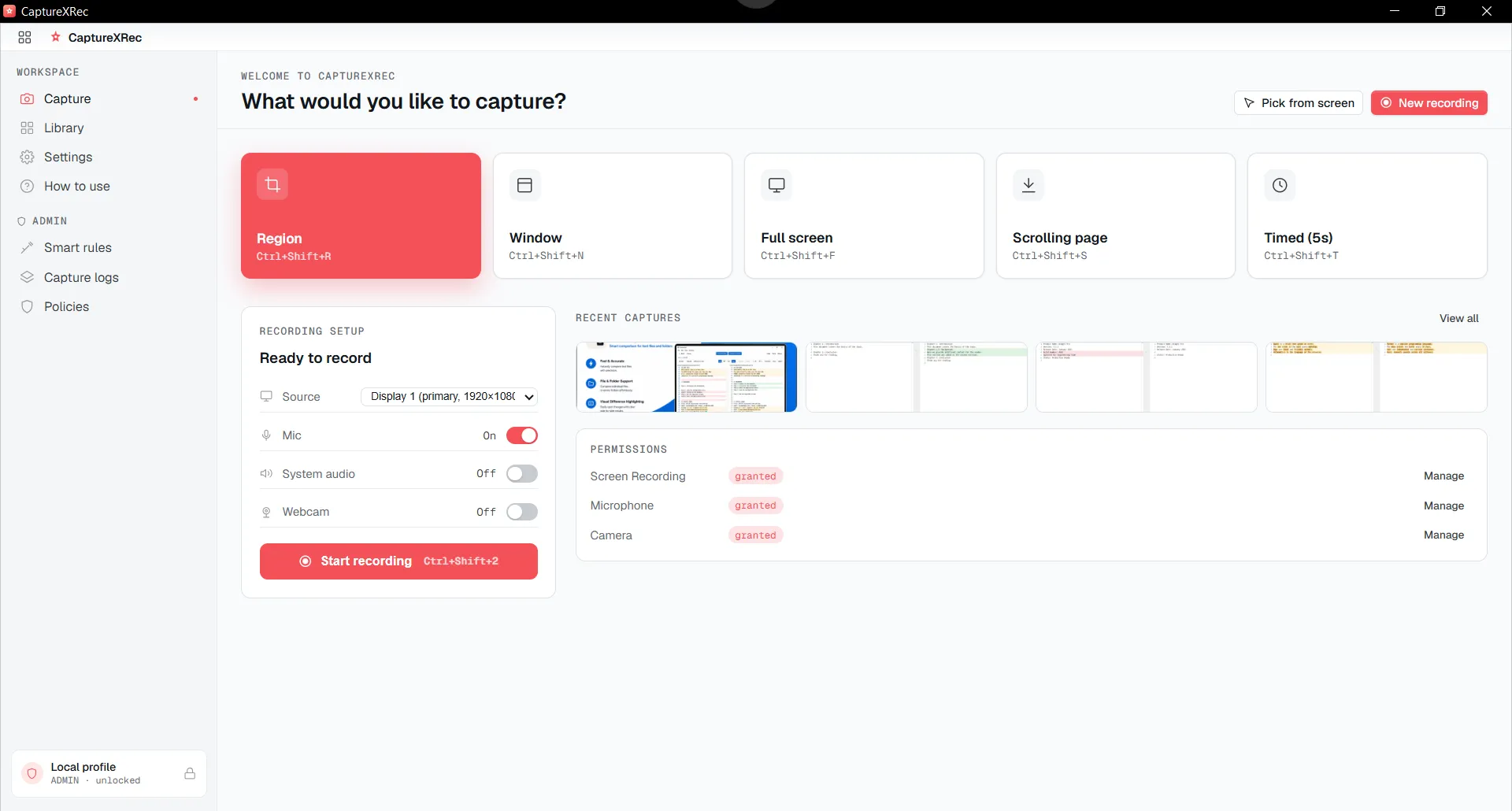
Five capture shapes live behind one widget — pick whichever matches what’s on screen.
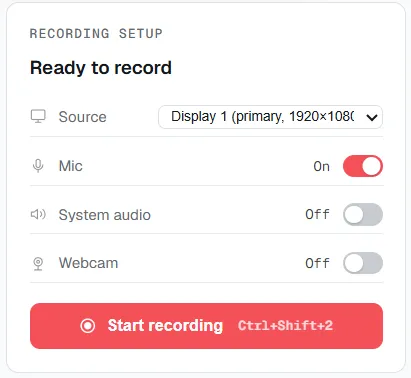
The same widget flips to recording mode and saves out as ordinary MP4 — H.264 video, AAC audio.
Bring up the widget with a keyboard shortcut you can change, without switching away from what you are doing.
Choose an area, a window, the full screen, a long scrolling page or a timed shot, or switch the widget to record video instead.
Pick the window, area or screen you want and confirm. It works the same on x64 and ARM64 PCs.
The file is saved to your library and your disk as MP4 or PNG, and the widget does not appear in it.
Supported on
Windows 10 (1809+) · Windows 11 · x64 · ARM64
Yes. It runs on Windows 10 (version 1809 or newer) and Windows 11, and runs natively on both x64 and ARM64 PCs.
No. There is no account and no sign-in. Install it and the widget is ready to use.
MP4 (H.264 video, AAC audio). It is a standard format that plays in any common player without converting.
No. The widget leaves itself out of every screenshot and video it makes.
$12.49, once.
Buy on Microsoft Store — $12.49